New AI Features in Modern Campus
UND enabled new AI features in the Modern Campus (Omni) content management system (CMS) to help with writing:
- Page meta titles and descriptions: Generate metadata that helps search engines and users understand your page.
- Alternative (alt) text: Generate a text alternative description to help people using screen readers understand an image.
Although these tools can save time, AI-generated content is only a starting point. Human review is required. It makes mistakes!
Generate Page Titles and Descriptions
To generate AI page titles and descriptions:
- Check out the page.
- Go to Properties.
- Find the Title or Description fields.
- Select the blue generate button to create a suggestion. If you do not like the first suggestion, click the button again to generate another.
- Review and edit the generated content.
- Save your changes and continue through the normal publishing workflow.
Keep a few things in mind when using this feature:
- Add content first. Web editors typically add a title and description when creating a new page. However, the AI feature cannot generate useful metadata for a blank page. In fact, the feature isn’t even available when you create a new page in the general page set up.
- Generating new text will overwrite existing text. If you want to preserve the current title or description, copy it before clicking generate. If you decide not to keep the AI-generated version, paste the original content back in. If you forget to copy, you can always check the page back in without saving changes.
- You can undo an accidental save. If you accidentally save AI-generated content you did not intend to keep, revert the page to its previous version.
- The recommendation isn’t always good. In testing, we found that sometimes ChatGPT, or other AI tools, will generate a better title or description than Modern Campus. For example, the UND Brand homepage AI recommendation from ChatGPT was more descriptive, complete and search engine friendly than Modern Campus:
- OK – Modern Campus AI: Learn UND brand standards, training, approval requirements, and resources to create clear, consistent communications.
- Better – ChatGPT: Explore UND brand guidelines, training and resources for logos, colors, messaging, typography, photography, video and more.
What Makes a Good Page Title?
Most UND page titles are in good shape, but the AI tool can be useful when a title is missing, overly broad or too long/short.
Keep these guidelines in mind:
- Page titles should be concise, specific and unique.
- Do not include “University of North Dakota.” Our CMS is programmed to automatically add University of North Dakota to the end of every page title.
- Avoid vague titles like “Information,” “Resources” or “About.”
- Too vague: Forms
- Better: Financial Aid Forms
H1’s and Breadcrumbs
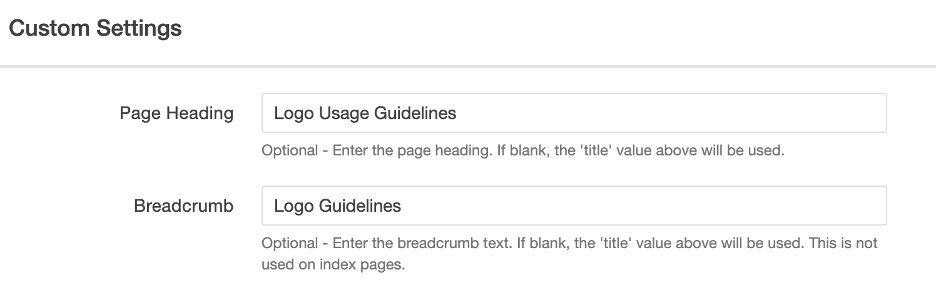
By default, Modern Campus applies your page title to the page heading (H1) and breadcrumb. AI may generate a page title that works well for identifying your page in search but is too long for the page heading (H1) or breadcrumb. You can create shorter versions in the Properties tab. For example, the Logo Usage Guidelines page has:
- Title: Logo Usage Guidelines | Brand
- Page Heading (H1): Logo Usage Guidelines
- Breadcrumb: Logo Guidelines
What Makes a Good Page Description?
Every page should have a unique description that accurately summarizes its content.
A good description should:
- Be a complete, readable sentence.
- Start with an action verb.
- Clearly explain what users will find on the page.
- Use search terms naturally.
- Be specific and unique to that page. No two pages should have the same description.
Common problems include:
- Blank descriptions.
- Descriptions copied from another page.
- Outdated descriptions. This is a very common problem for us when dates or data are added to descriptions.
- Descriptions that say very little. “Learn more about our department” does not tell a user much about that page or even what department the page is about.
- Aim for about 120-160 characters.
Find Pages That Need Attention with Siteimprove
If you wish to complete a comprehensive sweep of your meta content, we recommend using Siteimprove to quickly identify potential issues.
In the SEO Audit > Issues tab, look for:
- Meta titles are too short
- Meta descriptions are too short
- Meta titles are too long
- Meta descriptions are too long
- Duplicate meta descriptions
- Missing meta descriptions
Generate Alt Text
UND’s Siteimprove tools can identify images that are missing alt text, but automated testing cannot determine whether the description is useful or accurate. The new AI feature provides a starting point to write alt text.
How to Generate Starter Alt Text
The AI alt text feature is very awkward because it is only available in image Properties and is not part of the normal Insert/Edit Image workflow for inserting images on a page. This is a Modern Campus setting and unfortunately not something UND can change.
To generate AI alt text:
- Upload the image to _files/images.
- Check out the image.
- Select Properties.
- Select Generate Alt Text under the Default Alt Text field.
- Review the suggestion and edit it as needed. You can generate another suggestion if the first one is not useful. (This text will be added to the image’s “Alternative description” field when the image is inserted into a page.)
- Select Save.
- Publish the image through your normal publishing workflow.
How Properties Alt Text Works
When alt text is saved in an image’s Properties, the alt text becomes the default alt text each time the image is inserted on a page. You can still edit it for a specific use in the Insert/Edit Image window.
Please be aware that updating the alt text in Properties does not change alt text on pages where the image is already used. Those images keep the alt text that was applied when the image was inserted and must be updated individually. For that reason, the AI alt text tool is most useful for new images uploaded to the CMS, especially when you need help creating strong starter alt text.
Modern Campus AI Alt Text Had Mixed Results
An important limitation of the new alt text feature is it does not know the significance of the image or UND-specific information like the names of our people, buildings, programs or events. There were also instances where it did not correctly follow accessibility best practices, such as including unnecessary phrases like “portrait of.” Good alt text communicates the information someone needs from an image without unnecessary detail. They already know it’s an image of some kind, so you don’t need to say general terms like picture, image, etc. Also, leave alt text empty if the image is purely decorative.
Here are some examples:
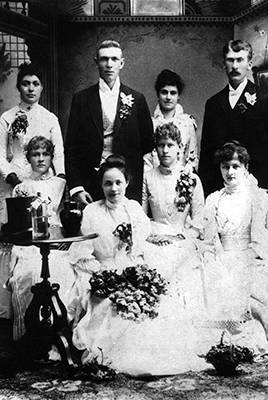
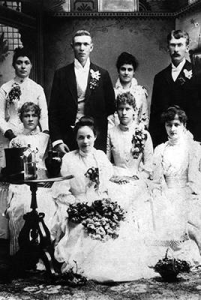 UND’s First Graduating Class
- AI generated: Vintage black-and-white formal family portrait of seven people in white dresses and suits
- Better: UND’s first graduating class in 1889 of six women and two men
- Scott Snyder Headshot
- AI generated: Portrait of a man in a blue suit, green tie, and glasses
- Better: Scott Snyder
- Twamley Hall
- AI generated: University of North Dakota clock with UND banners in front of a brick building
- Better: UND clock in front of Twamley Hall
Give the AI Tools a Try
We encourage web editors to try these new AI features. As with any AI tool, use your judgment. Keep what works, improve what does not and skip the suggestion when you can write something better.